
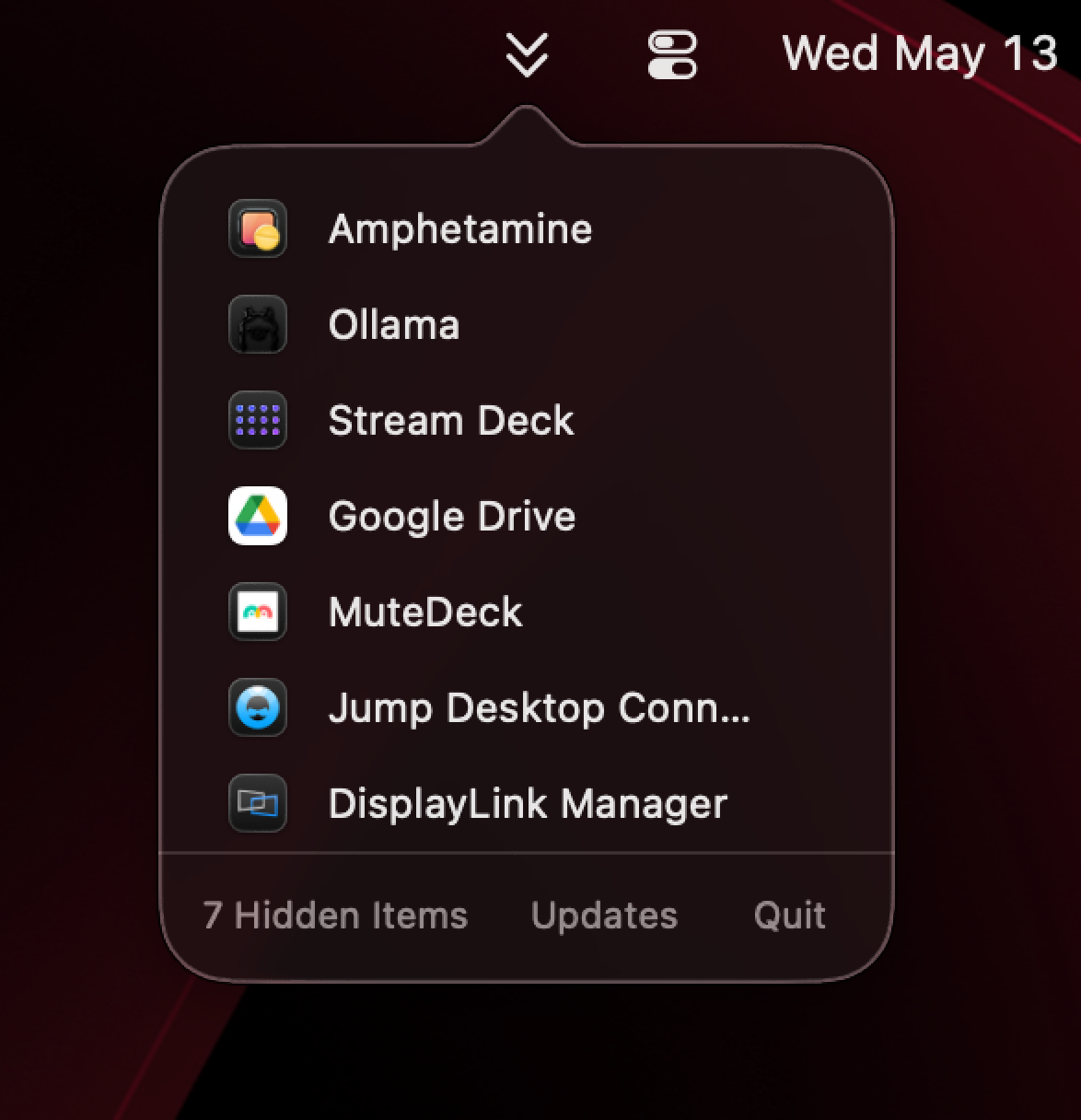
// tiny tool, very specific problem

problem solved.

Maybe next release, apple?

macOS added Menu Bar Controls to hide menu bar items, but never a quick way to get them back. On Golden Gate, MenuView now opens its popover right where it belongs — next to your menu bar icons. If you're still on Tahoe, update to Golden Gate; Tahoe was kind of a mess and you're not doing yourself any favors staying there.

WHAT IT IS/IS NOT

MenuView gives you one click that lists all running apps with hidden menu bar extras. Open MenuView, pick the hidden item, and it presses the menu bar extra for you — left-click for the primary action, right-click for apps that offer a secondary menu.

MenuView does not provide any other advanced features found in other menu bar managers. It is deliberately small: show hidden running extras, open hidden running extras, hide or show them, get out of the way.

// small print, but useful

things to know.

Accessibility & Full Disk Access required

MenuView needs macOS Accessibility permission so it can open hidden menu bar extras when you click them. It also asks for Full Disk Access — that's only so it can read the menu bar preferences file directly, not because it's nosy.

macOS accessibility full disk access

Only running apps appear

If an app is not currently running, MenuView will not show it. It reveals hidden menu bar extras, not a Launchpad replacement (RIP).

menu bar control center

Left-click, right-click, hide, show

Left-click a hidden extra to open it, right-click for its secondary menu if the app has one. Need to hide or show a menu bar app entirely? Do it right from MenuView's Hide/Show Items submenu — no trip to System Settings required, though it's still there if you're into that.

left & right click hide/show items
// straight from the latest build

latest release.

MenuView checking…

Checking for the latest release. macOS may ask for permission to know what version it is.

current macOS